

Are trying to install QuickBooks desktop and suddenly encounter an installation error? Well, there is no need to panic, as installation related errors are quite common and can occur due multiple reasons. In QB community, many users have already reported installation related errors such as QuickBooks error 1603, 1935, 1904, 1402, 1722 and other setup related issues while installing or updating QuickBooks desktop. These installation errors have always been one of the most significant issues of this software. Thus, Intuit, the company that developed this program, analyzed the installation issues faced by users and introduced the QuickBooks install diagnostic tool and various other tools that could help the users in dealing with the installation problems.
In this segment, we'll be discussing several tried and truly tested methods that can assist users in solving QuickBooks desktop install errors. However, if you feel that resolving these errors isn't your cup of tea, then leave all your worries on our 24/7 QuickBooks error support team and let them handle this for you.
List of QuickBooks desktop installation errors
If you runs into trouble while installing QuickBooks desktop, or while opening if after the installation, then do not worry we are here to help you. The list of errors that come under this category are:
Well, if you are familiar with any of these errors and are facing any of them, then the below methods can be employed. So, without further ado, let us dive into the procedures.
What can lead to install errors in QuickBooks desktop?
The various causes of installation errors in QuickBooks are:
- The system does not meet the minimum system requirements.
- If there is damaged Microsoft .NET Framework.
- Conflicting programs are running in the background.
- Microsoft components may be damaged or corrupted.
- A virus or malware infection has affected the system.
Read this also: How to Fix Client Ready Reports Compile Error in QuickBooks?
Methods to Fix QuickBooks Desktop Install Errors Like an Expert
Encountering QuickBooks desktop install errors happen in a fraction of a second, but resolving them might take a few steps or methods. So, let us check out tried and tested methods one by one that you can employ to get rid of the annoying install errors.
Method 1: Update Windows OS
Updating Windows can help you in fixing the installation error up to a major extent. The steps involved in this process are:
At first, review how to manually update sections of the Microsoft article and then update the version of Windows.
- Press Windows button and type Update Windows in search bar.
- Hit a click on Windows Update option to option it.
- Next step is to tap on Check for updates.
- Install all available updates.

- After the update completes, restart the system.
- Then open QuickBooks and the company file, in case you were able to open the QuickBooks before the error was seen.
- In case you weren't able to finish installing QuickBooks, then you would require to install the QuickBooks desktop again.
If you were able to install and open QuickBooks, you would not be troubled by the error anymore.
Method 2: Download QuickBooks tool hub and use Install Diagnostic Tool
Earlier, the QuickBooks tool hub program was not in trend, and not many users are aware of it, but this can be a savior for these install errors. You can download and run the tool hub and can use the install diagnostic tool to get rid of the QuickBooks installation errors. The steps involved in this process are as follows:
- At first, close QuickBooks desktop.
- Then download the QuickBooks tool hub file from the official Intuit website.
- Save this file, where it can be accessed with much ease.
- To install the tool hub, run the file by double clicking on it.
- Now carry out the on-screen instructions to install and Agree to the Terms and conditions.
- Once done, double-click on the Icon to launch the program.

It should be noted that, if you are unable to spot the icon, you need to do a search in Windows for QuickBooks Tool hub and choose the program.
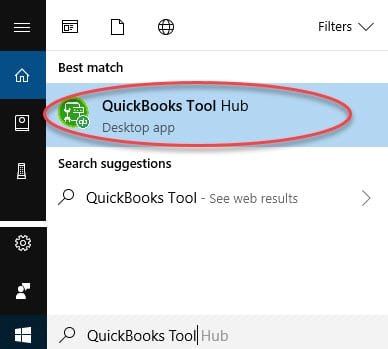
- And then select the Installation issues from left side options.
- Choose QuickBooks Install Diagnostic tool and let the tool run.
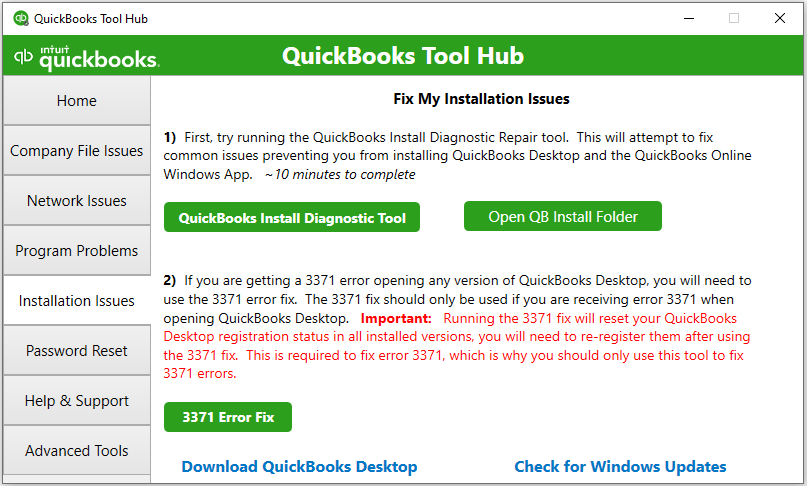
- Wait for some time to detect and diagnose the issue, as the tool might take some time or can even take up to 20 minutes.
- After the process ends, reboot the system.
Method 3: Repair Microsoft .NET Framework
In case the QuickBooks install diagnostic tool and the update didn’t fix the error, you can repair specific windows components yourself. It should be noted that you should carry out the below processes under the professional assistance.
- Press Windows key and go to Control Panel.
- After that select Programs and Features option.
- Tap on Turn Windows Features On or Off and verify these options:
- .NET Framework 3.5
- .NET Framework 4.8 (or newer)

- If it disabled, enable the framework immediately.
- Save all the changes, and restart your system.
Method 4: Use selective startup mode to install QuickBooks desktop on safe mode
In case none of the above methods worked, you are supposed to install QuickBooks in selective start mode i.e. safe mode, as it might fix the error up to a certain extent. The steps involved in this process are as follows:

- Create a backup of the company file and also keep a copy of QuickBooks desktop product and license info.
- And then start the system in Selective startup mode.
- Press Windows + R keys and then open Run command.
- Type msconfig and then select OK button.
- Now choose the Selective startup and Load system services.
- Move to the Services tab and then choose Hide all Microsoft services.
- Next step is click on Disable all option.
- Un-check the Hide all Microsoft services checkbox.
- Ensure that the Windows installer checkbox is selected.
- Hit OK tab and then restart.
- Uninstall or install QuickBooks desktop
- Switch back to Normal startup mode.
- Press the Windows + R keys together to open the Run box.
- And then type in msconfig and hit the OK button.
- From the general tab, choose the Normal startup.
- And hit OK button.
- Restart you system once all the steps complets.
You may also read: How to Troubleshoot QuickBooks Error code 6175?
Method 5: Close QBW32.exe process

- Under this method, hit a right-click on the Windows taskbar and then select the option labeled as Start task manager.
- Then hit a click on Processes tab.
- Once done, click on the Image name header to sort it alphabetically.
- Followed by locating it and selecting EXE
- Last step is to click on the End Process tab.
Method 6: Perform a clean installation of QuickBooks
In case the installation errors continue even after following the above methods, then you can perform a clean installation of the QuickBooks software. The steps to be followed in this process are as follows:
- Initially, you need to download the QuickBooks clean install tool.
- From the downloads folder, hit a click on QuickBooksCleanInstallUtility.exe file.
- Then select I Accept and choose the QuickBooks version you are using.

- In the next step, hit a click on the Continue tab and then choose OK button.
- At the end, repair the QuickBooks files and folders and also reinstall the software.
See Also: Fixation of QuickBooks Error Code 6144 82 and Error 6144 301
Method 7: Delete the temporary files and folders
The last method can be to delete or remove the temporary files and folders. The steps to be followed here are:
- The first step is to click into Windows or Start icon.
- And then open Run command.
- You are then required to type in cleanmgr on the box and tap on Enter.

- Also, start the Disk cleanup to scan the system. This process will generate a report that will show the junk files size in the system.

- The next step is to select the files that are required to be deleted with a click on the checkbox.
- Lastly click on OK and reboot the system.
Winding up!
Implementing any of the above strategies can be of great assistance in dealing with QuickBooks desktop install errors. However, a situation might arise when none of the above methods might work. If this happens, do not be concerned just give us a call at our helpline i.e., 1-800-761-1787, and our QuickBooks enterprise support experts will handle the issue. Our support team is available round the clock to provide the best possible assistance to all users. So, do not hesitate in calling us anytime, we will be happy to help you.
FAQ’s
Can QB installation errors be specific to certain operating systems?
Yes! these errors can be specific to specific OS. This is because the particular QuickBooks versions have specific requirements.
Can I install multiple versions of QuickBooks on the same computer?
Yes! You can install multiple versions of QuickBooks Desktop on the same computer. However, each version must be installed separately, and your system should meet the minimum requirements to ensure optimal performance.
Most searchable topics for you
How to Fix QuickBooks Cannot Create PDF File?